Mac app for Claude Desktop · Available

Your Claude Desktop sessions. One clear view.

Running Claude Code across several Claude Desktop accounts? Zensu Session Hub is a Mac app that lists the sessions from all of them in one place, opens the right one in one click, and shows which session is keeping your Mac busy. Back in flow.

No Zensu account yet? Request workspace access to join the waitlist, and mention Session Hub in the form’s optional “What would you build with Zensu?” field. The Mac app itself is available.

macOS 14 or later · Claude Desktop · Up to 20 accounts

With sound, muted until you turn it on · 1:05. Illustrative interface and fictional data. Move scenes: feature demonstration · simulated handover. Read the film as text

01 / Your attention is everywhere

Your AI is working. Your attention is everywhere.

Multiple Claude instances. Dozens of sessions. Somewhere, one of them is waiting for you.

Without one view

  • Your sessions are spread across Claude Desktop windows, one list per account.
  • A session waits for your input, and you find out late.
  • CPU climbs and memory fills up. Which session is behind it?
  • Your priorities sit in different projects and different accounts.
  • An account hits its usage limit in the middle of the work.

With Session Hub

02 / Open the right session

Click a session. Go straight to it.

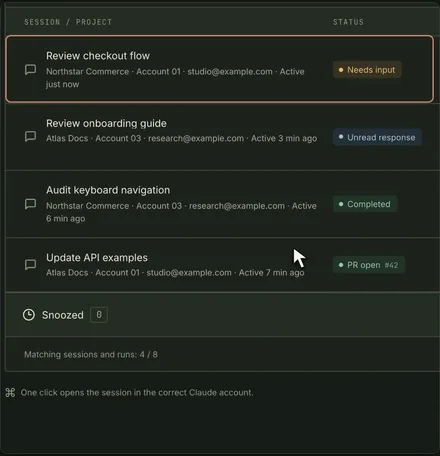
Session Hub lists the Claude Code sessions from all your Claude Desktop accounts in one place. One click opens the session in the correct Claude account: its window comes to the front and flashes a blue outline, so you can see where you landed.

  • See what needs you.

    Needs input, Unread response, Completed, PR open — the status shows where to look first, and tabs filter the list: All sessions, Needs attention, In progress and Open pull requests. Completed appears when Claude marks a session as completed.

  • Right account. Right session.

    Session Hub works with the Claude windows you’re already signed in to, up to 20 accounts, and brings the matching one to the front.

  • ⌘⌥J, from any app.

    Jump to the next session you haven’t opened yet without switching to Session Hub first. Session Hub has to stay running with its window open — behind other apps, hidden or minimized is fine.

History takes you back to the sessions you opened through Session Hub.

Session Hub’s session list. Review checkout flow, from Northstar Commerce on Account 01, is highlighted and marked Needs input; Review onboarding guide shows Unread response, Audit keyboard navigation shows Completed, and Update API examples shows PR open #42. A note below the list reads: One click opens the session in the correct Claude account.
0:17 · From the film — illustrative interface, fictional data
03 / Understand the load

Which session is keeping your Mac busy?

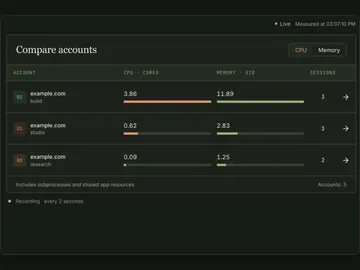
Compare CPU and memory across accounts, then per session — including subprocesses — then down to the processes behind it.

  1. 1 · Account

    Find the account behind the load.

    Compare CPU and memory across all your accounts at a glance.

    Compare accounts table with three accounts, showing CPU in cores, memory in GiB and the number of sessions; the build account leads with 3.86 cores and 11.89 GiB.
    0:22 · From the film — illustrative interface, fictional data
  2. 2 · Session

    Then find the session.

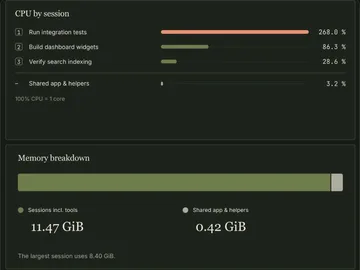
    CPU and memory for each session, including its subprocesses. Session Hub samples every 2 seconds and keeps up to 30 minutes of history while it runs.

    CPU by session: Run integration tests leads at 268.0 percent, ahead of Build dashboard widgets at 86.3 percent and Verify search indexing at 28.6 percent; below, a memory breakdown shows 11.47 GiB for sessions including their tools.
    0:25 · From the film — illustrative interface, fictional data
  3. 3 · Process

    See what’s behind it.

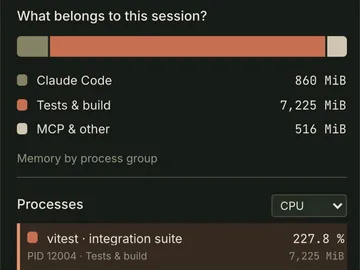
    What belongs to this session? Claude Code, tests and builds, and the other helpers it started. Then every process behind it: end a stuck tool or test process, always after a confirmation. Claude’s own processes are never ended from here.

    What belongs to this session: Claude Code 860 MiB, Tests & build 7,225 MiB and MCP & other 516 MiB; below, the process list starts with vitest · integration suite at 227.8 percent CPU in the Tests & build group.
    0:30 · From the film — illustrative interface, fictional data

The top bar keeps a 10-minute CPU and memory trend of all Claude processes. The film’s interface, names and numbers are illustrative.

04 · 05 / Focus and filters

Pin the work that matters. Save the views you return to.

Focus pins the sessions and projects that matter, across accounts. Saved filters bring a whole view back whenever you need it.

04 · Focus across projects

Two priorities. One focused view.

Turn on Focus only and the list shows just your focused sessions and projects, while the urgency counters keep counting everything.

Snooze a session until later, and it comes back when the snooze is due. With notifications on, a focused session tells you when it needs input or has finished.
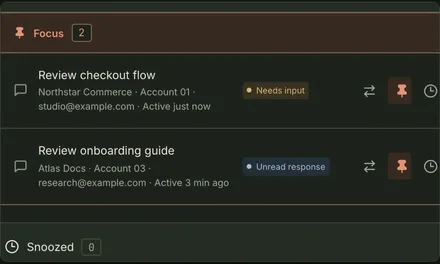
A Focus group with two pinned sessions: Review checkout flow, from Northstar Commerce on Account 01, marked Needs input, and Review onboarding guide, from Atlas Docs on Account 03, marked Unread response.
0:40 · From the film — illustrative interface, fictional data
05 · Filters & quick access

Order the chaos.

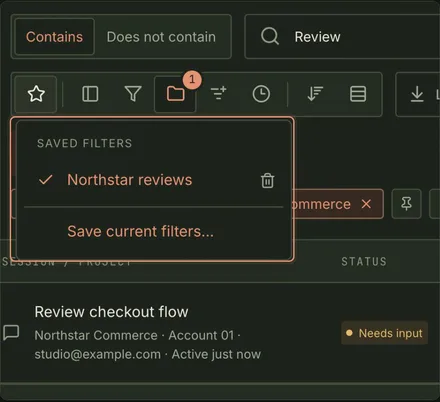
A saved filter keeps statuses, projects, search, text conditions, sort and grouping. Choosing it from the star applies all of it at once, and you can keep up to 20.

Group by project or account. Sort by attention, activity or quota reset.

The Session Hub toolbar with Review in the search field and the Contains text condition selected; the Saved filters menu is open with Northstar reviews checked and Save current filters below it. The Review checkout flow session, marked Needs input, shows underneath.
0:47 · From the film — illustrative interface, fictional data
06 / Move with the Zensu plugin

Each account’s limits, in one place.

Feature demonstration · simulated handover Move is shown here as a feature demonstration with a simulated handover.

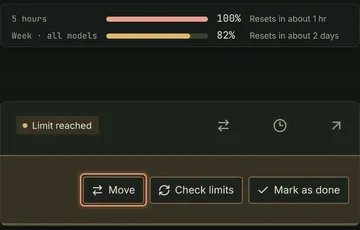
See every account’s 5-hour and weekly usage, and which sessions are waiting for quota. When an account is full, Move is designed to hand the running session to an account with capacity, using the Zensu plugin for Claude Code.

Session Hub is not a product of Anthropic and is not supported, reviewed or approved by Anthropic. Anthropic’s terms govern the use of Claude. They restrict access to Claude through automated means. On your instruction, Session Hub operates Claude Desktop automatically, for example when it creates, moves or renames sessions or signs you in automatically. Anthropic could regard this as automated access and restrict or suspend your Claude account. You decide which functions you use. Read the Session Hub license terms

  1. 1 · Limits

    See each account’s limits.

    Check every account’s 5-hour and weekly usage in one place. A session stopped by a limit moves into Waiting for quota, with its expected availability once the reset time is known. Reading limits briefly brings Claude windows to the front.

    One account’s usage: the 5-hour window at 100 percent, resetting in about 1 hour, and Week · all models at 82 percent, resetting in about 2 days. Below, a session marked Limit reached offers Move, Check limits and Mark as done, with Move highlighted.
    0:50 · From the film — feature demonstration, simulated handover
  2. 2 · Move

    Move the session.

    Feature demonstration · simulated handover

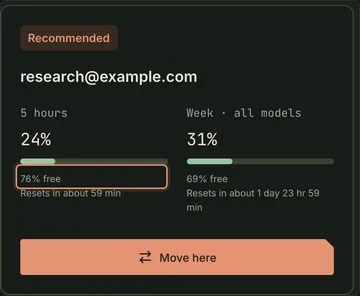
    Each destination shows its 5-hour and weekly usage, how much is free and its session count; the ones the recommendation favors are marked Recommended. Move here is designed to hand the running session over through the Zensu plugin for Claude Code.

    A Move destination marked Recommended for research@example.com: 5 hours at 24 percent used, 76% free and highlighted, resetting in about 59 min; Week · all models at 31 percent used, 69% free; and a Move here button.
    0:52 · From the film — feature demonstration, simulated handover

What Move needs

  • The Zensu plugin for Claude Code — see the plugin
  • A second connected Claude account with capacity in both usage windows
  • A session that runs on this Mac, not over SSH
  • A target account that lists the session’s folder among its recent folders
  • Starting fresh?

    New session recommends an account — Use before reset or Largest reserve — based on quota percentages, not token counts.

The fine print

What it needs. What it keeps. Where it stops.

Session Hub works with the Claude Desktop windows you’re already signed in to. Here’s what it asks of your Mac, what it keeps there, and where it stops.

What it needs

  • macOS 14 or later
  • Claude Desktop, signed in to the accounts you use — up to 20
  • Accessibility permission
  • Optional: the Automation permission for Apple Mail and Safari, only if you turn on the automatic sign-in to Claude
  • No developer tools to run the app
  • A Zensu account with a Session Hub trial or subscription
  • For Move: the Zensu plugin for Claude Code — the Move dialog can install it through the Claude CLI, or shows the command to run yourself

How it handles your data

  • Sessions are read locally, through macOS Accessibility.
  • History stays on your Mac: session titles, projects, account emails, first and latest visit times, visit counts, and the status and PR numbers at your last visit — never chat messages.
  • The limit reader doesn’t read cookies, credentials or message contents.
  • From Claude Desktop’s local metadata, only allowlisted fields are kept — never prompts or tool configuration.
  • The optional automatic sign-in reads Claude’s sign-in emails on your Mac and never sends them to Zensu.
  • Translations are built in; no translation service is used.

Signing in and renewing the license go through your Zensu account, online, over HTTPS. Update checks fetch release information from GitHub.

For the license, Zensu processes your Zensu account and entitlement, a device ID, device name and public device key for each activated Mac, events such as a trial start or a device activation, your acceptance of the license terms, and connection data such as your IP address. Privacy policy, section 3.6

Where it stops

  • It doesn’t create Claude accounts.
  • It can’t open scheduled runs.
  • It won’t open a session in a minimized Claude window, or act for an account whose Claude windows it can’t tell apart.
  • It shows when a session can resume after a limit; it doesn’t resume it for you.
  • Apart from Needs input, it recognizes Claude’s status words only in English and German. A Claude Desktop update can change what it sees.
  • It installs an update only when you choose. It checks for one at startup and every six hours, unless you turn that off.
  • It isn’t an Anthropic product. Anthropic could treat its automation as automated access to Claude and restrict or suspend a Claude account.

The app itself comes in 9 languages, follows Light, Dark or System, and zooms from 50% to 200%.

07 / Back in flow

All accounts. All projects. Your next step in sight.

Session Hub is available for Claude Desktop on Mac. It signs in with a Zensu account, and Zensu is in closed beta — if you don’t have an account yet, request access now.

Request workspace access takes you to the waitlist form for a closed-beta Zensu account. Mention Session Hub in its optional “What would you build with Zensu?” field.

Where things stand

Mac app
Available. Get the installer for your Mac from the latest release on GitHub (opens in a new tab).
Zensu account
Session Hub signs in with one. Zensu is in closed beta: request workspace access.
Already on Zensu?
Your Session Hub trial, subscription and Macs are managed in Session Hub settings.

Zensu Session Hub

Available
  • 14-day trial. It starts only when you choose Start — no card, no automatic payment.
  • One trial per person. It runs 14 days from the moment you start it.
  • Up to 3 Macs per person.

The app is licensed under the Session Hub license terms.

Film as text

The film, as text.

Everything the 65-second film shows, scene by scene. Lines in quotes appear on screen; the picture is described in square brackets. The film has sound, muted until you turn it on. Its interface and data are illustrative, names and addresses are fictional, and the Move scenes are a feature demonstration with a simulated handover.

Back to the film
  1. 01 Your attention is everywhere 0:00–0:16

    1. 0:00

      [A person sits at a desk in front of a large monitor, chin resting on one hand.]

      “Your AI is working.”

      “Your attention is everywhere.”

    2. 0:04

      [Four Claude Desktop windows, labelled Studio, Build, Research and Review, fill the screen, each with a long list of sessions.]

      “Multiple Claude instances. Dozens of sessions.”

      [A notice appears in one window: “Your review is needed.”]

      “Notifications piling up.”

    3. 0:10

      [Apple’s Activity Monitor: a node process leads the CPU list at 227.8%, and on the Memory tab it uses 7.06 GB.]

      “CPU climbs. Memory fills up.”

    4. 0:14

      [The person at the desk, watching the screen.]

  2. 02 Open the right session 0:16–0:22

    1. 0:16

      [The Session Hub window lists sessions from several projects and accounts.]

      “All your sessions. One clear view.”

    2. 0:17

      “Click a session. Go straight to it.”

      [Four sessions, each with project, account and status: Review checkout flow, Needs input; Review onboarding guide, Unread response; Audit keyboard navigation, Completed; Update API examples, PR open #42. The pointer selects Review checkout flow.]

      “Review checkout flow · studio@example.com”

    3. 0:19

      “Right instance. Right session.”

      [The matching Claude window, Studio, comes to the front with Review checkout flow open. The session reads “The review is ready. Which payment behavior should we keep?” and shows Needs your input. Small print: “Illustrative Claude window · Fictional session”.]

      “The matching Claude window comes to the front. Your selected session is ready.”

  3. 03 Understand the load 0:22–0:34

    1. 0:22

      “Find the account behind the load.”

      [A Compare accounts table lists three accounts with CPU in cores, memory in GiB and session counts; the build account leads with 3.86 cores and 11.89 GiB.]

      “Compare CPU and memory across accounts.”

    2. 0:23

      “Then find the session.”

      [CPU by session ranks three sessions; Run integration tests leads at 268.0%.]

      “Run integration tests · the heaviest session”

    3. 0:25

      “CPU and memory. Per session.”

      [Session resources for Run integration tests: CPU 268.0%, or 2.68 cores, and a memory footprint of 8.40 GiB including subprocesses.]

      “268% CPU · 8.40 GiB · including subprocesses”

    4. 0:28

      “Follow the CPU history.”

      [A five-minute CPU history climbs and levels off near 270%.]

    5. 0:29

      “See what is behind it.”

      [What belongs to this session? Claude Code 860 MiB, Tests & build 7,225 MiB, MCP & other 516 MiB. The process list starts with vitest · integration suite at 227.8% CPU, followed by Session runtime and Language server.]

      “vitest · integration suite · 7,225 MiB”

    6. 0:32

      [The person at the desk, watching the screen.]

  4. 04 Focus across projects 0:34–0:44

    1. 0:34

      “Pin the work that matters.”

      [Two sessions are pinned into a Focus group at the top of the list.]

      “Pin sessions from different projects and accounts.”

    2. 0:38

      “Two priorities. One focused view.”

      [Only the Focus group remains: Review checkout flow from Northstar Commerce on Account 01, marked Needs input, and Review onboarding guide from Atlas Docs on Account 03, marked Unread response.]

      “Northstar Commerce + Atlas Docs”

      “Across two different accounts.”

      “8 sessions → 2 priorities”

    3. 0:42

      [The person types at the keyboard.]

  5. 05 Filters & quick access 0:44–0:48

    1. 0:44

      “Order the chaos.”

      “Search by text.”

      [Review is typed into the search field, and the list narrows to two matching results.]

      “8 sessions → 2 matching results”

      “Choose your project.”

      [The project filter is set to Northstar Commerce.]

      “Save your filter.”

      [The filter is saved as Northstar reviews.]

      “Return in one click.”

      [The Saved filters menu lists Northstar reviews.]

      “Text + project filters. Saved for quick access.”

  6. 06 Move with the Zensu plugin 0:48–1:00

    1. 0:48

      “Account limit reached?”

      [The account build@example.com has used 100% of its 5-hour window and 82% of its week; a session in that account is marked Limit reached.]

      “100% used”

      “build@example.com”

      “Waiting for quota”

    2. 0:50

      “Use Move. Keep going.”

      [The session offers Move, Check limits and Mark as done; Move is highlighted.]

      “Move this session →”

      “The account is full. Your work can continue.”

      [Small print: “Feature demonstration · simulated handover”.]

    3. 0:51

      “Choose an account with capacity.”

      [A destination card marked Recommended for research@example.com: 5 hours at 24% used, 76% free, resetting in about 59 min; Week · all models at 31% used, 69% free; a Move here button.]

      “76% free. Room to continue.”

      “76% free in the 5-hour window.”

      [Small print: “Feature demonstration · simulated handover”.]

    4. 0:55

      [The person at the desk; the title “Zensu Session Hub” fades in.]

  7. 07 Back in flow 1:00–1:05

    1. 1:00

      [End card with the Zensu logo.]

      “Zensu Session Hub”

      “Back in flow.”

      “For Claude Desktop on Mac.”

      “More integrations planned.”

      “Follow for updates”